
Managing Your Contacts
How to view, add, search, and organise all your contacts in one place — plus how to use smart lists for targeted outreach.
Managing Your Contacts
Your contacts tab is the home base for everyone connected to your business — leads, clients, newsletter subscribers, past retreat guests, all in one place. Here's how to find your way around and make the most of it.
Adding a new contact
Most contacts are added automatically when someone fills out a form or books a call on your website. But sometimes you need to add someone manually — for example, after meeting a potential client at an event.
Click the Add Contact button
You'll find it on the right side of the contacts tab. Watch this step (0:18)
Fill in their details
Enter their first name, last name, and email at minimum. You can also set their time zone if they're in a different country. You can even add multiple email addresses or phone numbers for the same person — handy if a client uses both a personal and work email.
Here's what the Add Contact form looks like:

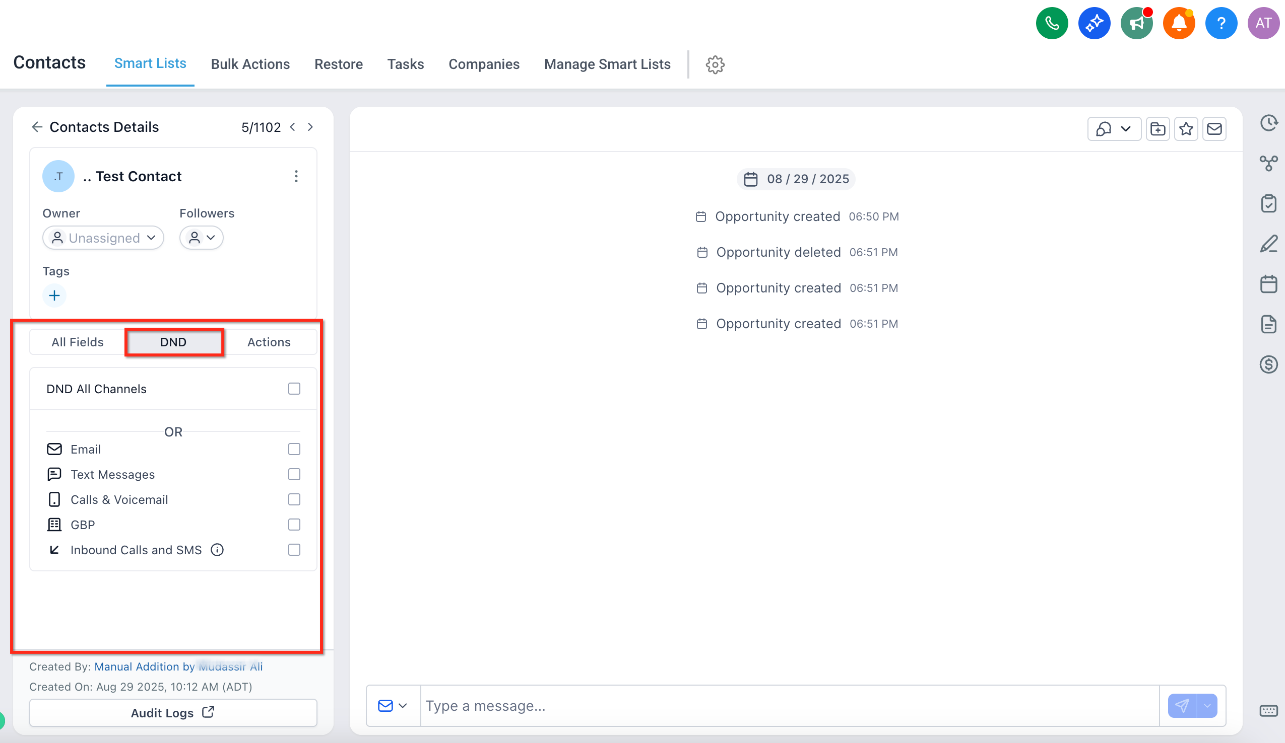
You'll see a Do Not Disturb toggle (shown below). If you turn this on for email or text, this person will never receive automated emails or messages from your system. Leave it off unless you have a specific reason to turn it on.
Click Save
That's it — the contact now appears in your list and you can start working with them. Your changes save automatically as you move between fields, so you won't lose anything if you forget to click Save.
You don't need to fill in every field. A first name and email address are usually enough to get started. You can always add more details later. If you need to track information specific to your business (like "Retreat Date" or "Dietary Requirements"), we can create custom fields for you — just ask on Slack.
Viewing a contact's full profile
Click on any contact's name to open their full profile. This is where you see the complete picture of your relationship with this person. Watch this step (1:04)
The profile is split into three panels. On the left, you'll see their details and quick actions. In the centre, their full conversation history. On the right, everything else — notes, appointments, documents, and more. You can collapse any panel to focus on what matters most, and the system remembers your layout.
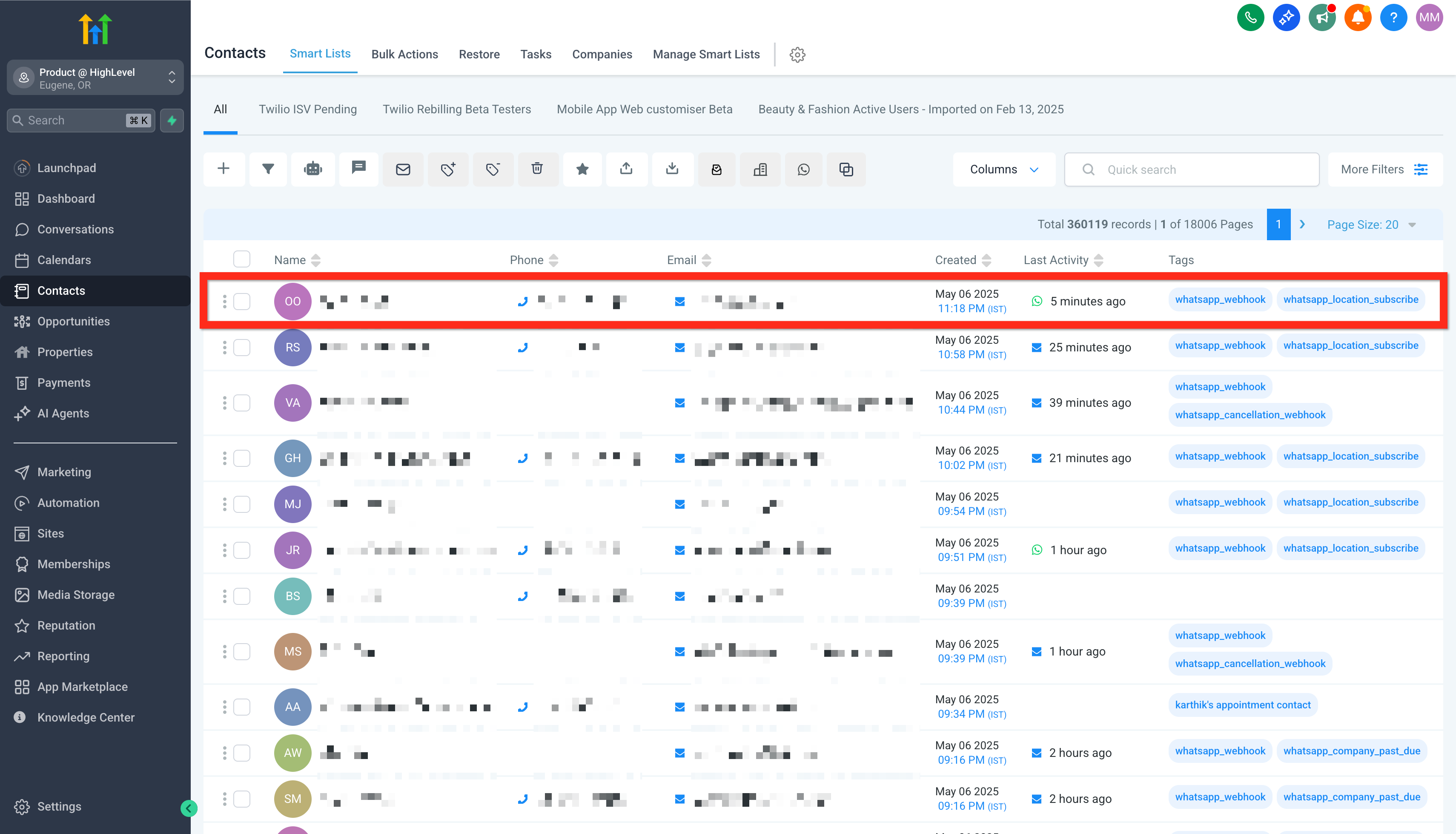
Here's what you'll find inside:
Get in the habit of adding a quick note after every call or meeting. Your future self will thank you when you need to remember what you discussed three months ago.
Finding contacts with filters
As your contact list grows, you'll want to quickly find specific people. That's where filters come in. Watch this step (2:30)
Click Advanced Filters at the top of your contacts tab. You can filter by:
- Tags — labels like "Newsletter", "Retreat 2025", "VIP Client"
- Email address — find a specific person
- Date added — see who signed up recently
- Activity — filter by who's opened emails, clicked links, or gone quiet
You can combine multiple filters using AND/OR logic to get very specific. For example: "Show me everyone tagged 'Newsletter' AND who has opened an email in the last 30 days." Or: "Show me everyone tagged 'Retreat 2025' OR tagged 'Retreat 2024'."
If your contact list feels cluttered, use the Hide Empty Fields toggle in a contact's profile to only show fields that actually have data. You can also search within fields to jump straight to the information you need.
Creating smart lists
Smart lists are saved filters that you can come back to with one click. Think of them as folders for different groups of contacts. Watch this step (3:08)
Set up your filter
Use the advanced filters to narrow down the contacts you want in this list. For example, filter by the tag "Newsletter" to see all your newsletter subscribers.
Save it as a smart list
Once your filter shows the right people, click Save as Smart List and give it a name (e.g., "Newsletter Subscribers" or "Past Retreat Guests").
Here's what creating a smart list looks like in practice:
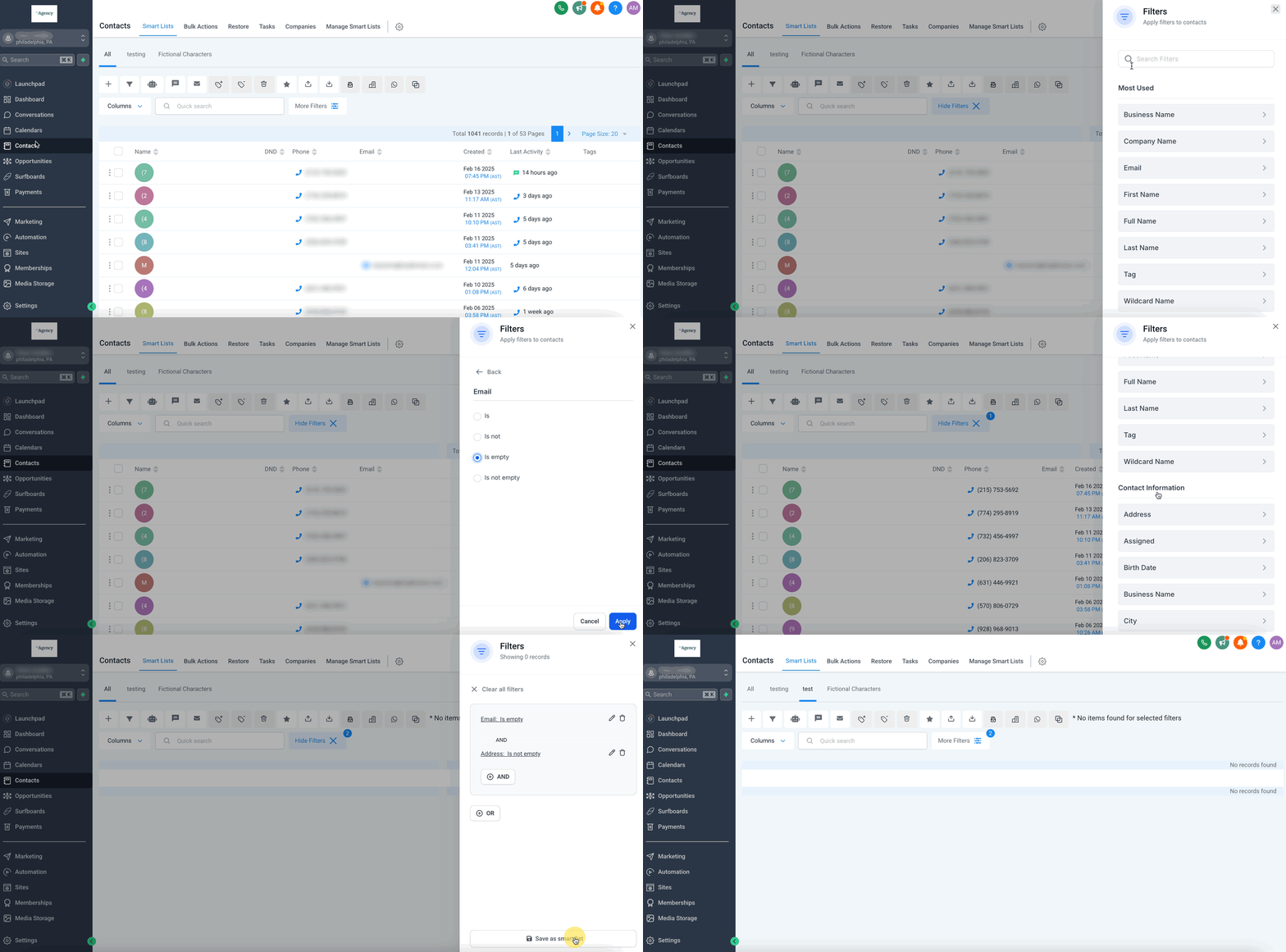
Access it anytime from the sidebar
Your smart list now appears as a subcategory in the contacts sidebar. Click it anytime to instantly see just that group of people.
Why smart lists matter
Smart lists aren't just for browsing — they power your marketing:
- Email campaigns — Send a newsletter to just your "Newsletter Subscribers" smart list instead of blasting your entire contact list. Learn more about email campaigns
- Targeted offers — Create a smart list of past retreat guests and send them an early-bird offer for your next retreat
- Automations — Set up automated emails that only go to people in a specific smart list. For example, "only send this follow-up to people who bought this specific product." Learn more about automations
Smart lists are dynamic — they update automatically in real-time. When a new contact matches your filter criteria, they appear instantly. And if you schedule an email campaign to a smart list, the recipient list is generated at the moment of sending, not when you scheduled it. So last-minute sign-ups are always included.
You can also manage your smart lists — duplicate them, rename them, share them with team members, or delete ones you no longer need. Look for the Manage Smart Lists option at the top right of the contacts page.

Importing contacts in bulk
Already have a list of contacts from a spreadsheet or another tool? You can import them all at once instead of adding them one by one. Watch this step (5:09)
Click the Import button at the top of the contacts tab and follow the steps.
Upload your spreadsheet file
Your file needs to be in spreadsheet format (.csv). It should have a header row with column names like "First Name", "Email", "Phone", etc. Keep the file under 30MB — if it's larger, split it into smaller batches.
Match your columns
The system will ask you to match each column in your file to the right field. It's smart enough to guess most of them, but double-check that "First Name" maps to first name, "Email" maps to email, and so on.
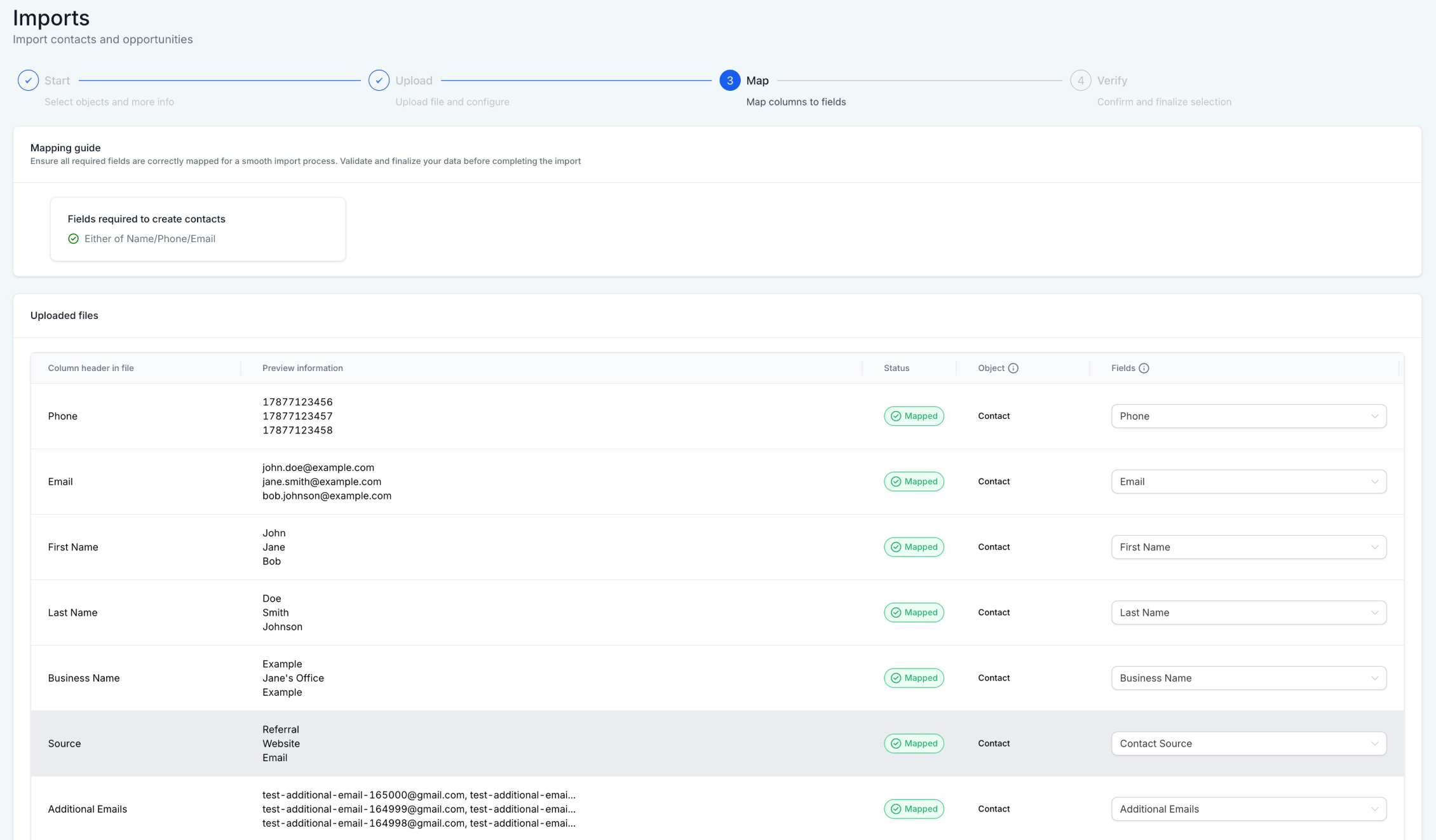
Choose your options
You can choose to create new contacts only, update existing ones only, or both. The system automatically detects duplicates based on email or phone number — so if someone's already in your system, their record gets updated instead of creating a duplicate.
Add tags and automations (optional)
During import, you can automatically tag all imported contacts (e.g., "Imported March 2025"), add them to an automated sequence, or create a smart list from the import. This saves you from having to do it manually afterwards.
Only import contacts who have given you permission to email them. Importing purchased lists or contacts who haven't opted in damages your email reputation and violates privacy regulations. Every row in your file should have at least a name and an email address or phone number.
After importing, you can check the status and see if any rows had errors by going to the Bulk Actions page. If something went wrong, you'll see an error log you can download to fix and re-import.
Deleting a contact
If you need to remove someone from your system, select their name using the checkbox to the left, then click Delete. You'll need to type "DELETE" to confirm — this prevents accidental deletions.
Deleting a contact also removes their conversations, notes, appointments, and tasks. But don't panic — deleted contacts can be restored within 2 months if you change your mind. After that, they're gone for good.
In most cases, it's better to keep contacts rather than delete them. Even if someone isn't a client right now, your re-engagement automations might bring them back months later. Consider adding a "Not Interested" tag instead of deleting.
Quick reference
| What you want to do | Where to find it |
|---|---|
| Add a single contact | Add Contact button (top right) |
| View someone's full history | Click their name |
| Search for a specific person | Search bar or Advanced Filters |
| Create a group of contacts | Advanced Filters → Save as Smart List |
| Import many contacts at once | Import button |
| Perform actions on multiple contacts | Bulk Actions button |
| Delete a contact | Select with checkbox → Delete |
| Manage your smart lists | Manage Smart Lists (top right) |
What to read next
Pipeline Overview
See the visual board where your contacts move through stages.
Tracking Leads
Learn how to move leads through your pipeline and track potential revenue.
This feature is part of our Growth Tools package. Interested in adding it to your setup? Send Korneel a message on Slack and we'll walk through whether it's a good fit for your business.
Need help? If you get stuck, send Korneel a message on Slack and we'll sort it out together.